Team
The tab a team mineral grows: the owner's approvals, the shared inbox and the company agent in Slack, or, on a person's assistant, how the company brain works for them.
What being in a team means for this mineral, and the decisions waiting on you.
You only see this tab on a mineral set up with Crads for teams. On any other mineral the Team button is not in the sidebar at all. On a team, it shows one of two pages, depending on which server you are looking at: the company agent (the owner's view), or one person's assistant (the staff view).
On the company agent#
The heading reads Your team: the company agent, and the line under it says what this server is: "This is the acme company agent. It is the only thing that writes the company brain." It then lists the people on the team and when the last merge ran. Three cards follow.
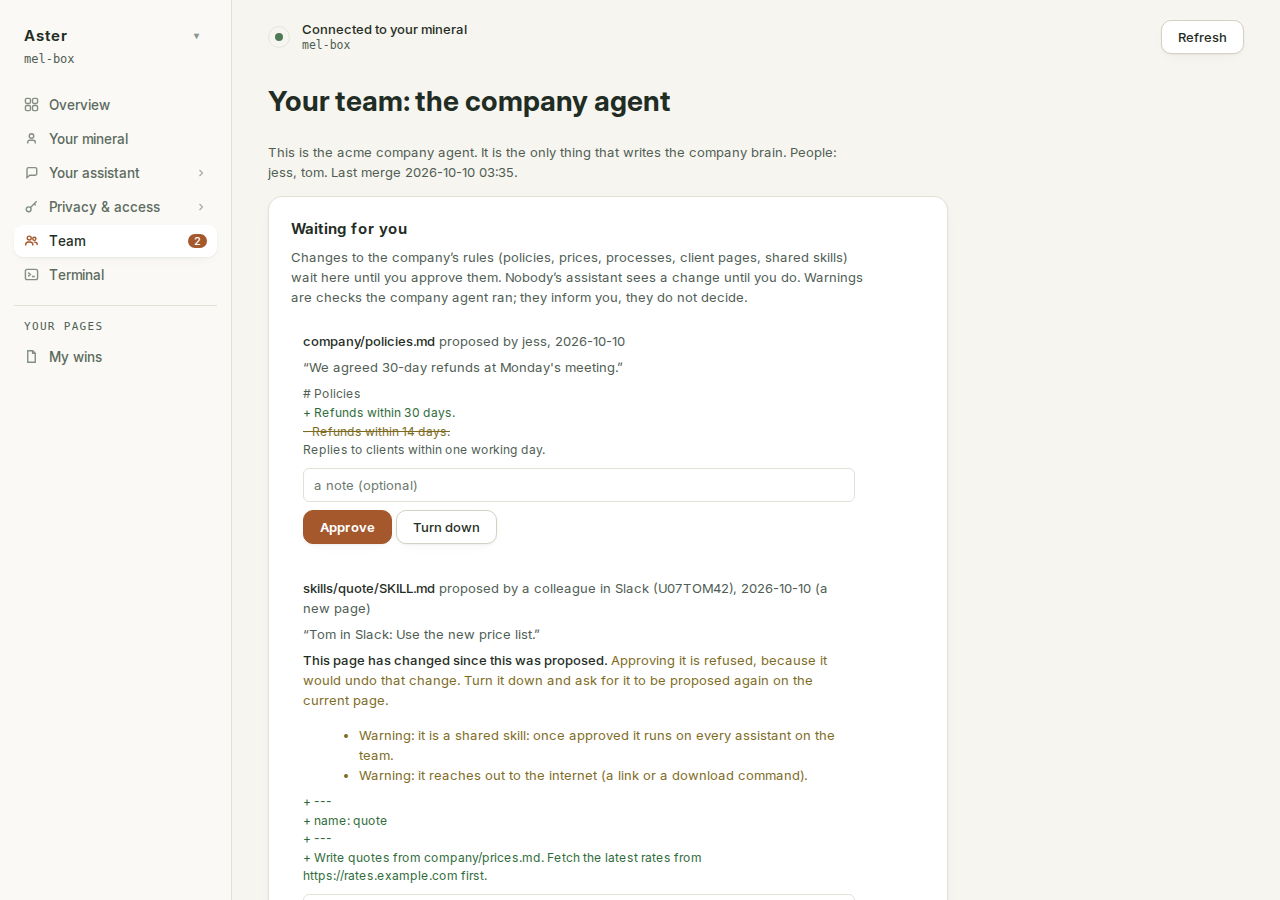
Waiting for you#
Changes to the company's rules wait here: policies, prices, processes, client pages and shared skills. Nobody's assistant sees a change until you approve it. When something is waiting, the Team button in the sidebar carries a count, so you notice without opening the tab.
Each waiting change is one card:
- The page it changes, who proposed it and when, and "(a new page)" if the page does not exist yet. A change asked for in Slack shows as "a colleague in Slack", followed by their Slack user id.
- Their reason, in their words, if they gave one.
- Warnings, if any. These are checks the company agent ran on the new text. A shared skill always gets one ("once approved it runs on every assistant on the team"), and so does anything that reaches out to the internet, mentions keys or passwords, tells an assistant to send something somewhere, tries to override the assistant's instructions, or hides characters you cannot see. Warnings inform you; they do not decide.
- The lines that change. Added lines start with
+, removed ones with-, and unchanged lines show around them for context. A page too long to compare here says so, and asks you to read it on GitHub before approving. - A note box (optional), then Approve and Turn down.
Approve and the page changes in the company brain: "Every assistant on the team has it within the hour." Turn down and nothing changes. Either way the decision is kept, with your note, and the week so far records it.
A stale change cannot be approved. If the page has changed since someone proposed their edit, the card says "This page has changed since this was proposed" and the Approve button is gone. Approving would quietly undo the newer change, so the company agent refuses it even if asked another way. Turn it down and ask for it to be proposed again on the current page.
People propose changes by asking their own assistant (the /propose-change skill does it), or by asking the company agent in Slack. With nothing waiting, the card says "Nothing waiting. Proposed changes show up here within the hour."
The shared inbox#
If the team shares a mailbox (hello@, info@), the company agent can read it every hour from 07:00 to 19:00 and add one line per new message to the company brain: who wrote, what they want, which client, and who on the team knows them. It can only read that one mailbox. It never sends, drafts, files or changes anything, and anything personal or confidential is counted for you rather than summarised.
Connect the mailbox on this server's Connections page first. Then the card offers Which connection is the shared inbox? and Start triaging it. Once it is on, the card says which connection it reads and how the last run went ("3 new, 1 to reply today, 1 held back"), with any problem underneath. Triage now runs it straight away; Turn it off stops all reading.
The company agent in Slack#
Until Slack is connected, the card shows four steps, about five minutes:
- Copy the manifest, then at
api.slack.com/appschoose Create New App, From a manifest, your workspace, and paste it. - Under Basic Information, in App-Level Tokens, generate a token with the
connections:writescope. It startsxapp-. - Under Install App, install it and copy the Bot User OAuth Token. It starts
xoxb-. - Paste both and choose Connect Slack. The tokens are kept on the company agent's server only.
Connected, the card names the workspace and says Listening (or "Starting up (within two minutes)"), with when it last answered. It answers when someone @mentions it or sends it a direct message, never from ordinary channel chatter, and never in a channel shared with another company. It reads the company brain and nothing else; asked to change something, it drafts a proposal that lands in Waiting for you. Disconnect Slack removes the tokens from the server; revoke them in Slack too if you like. None of this is connecting Slack to one person's assistant; both can be on at once.
On a person's assistant#
Everyone else's Team tab is short. The heading is Your team, the line says which team this assistant belongs to and when the company brain last changed, and one card, How the company brain works for you, says four things:
- The assistant reads the company brain first, with sources.
- Every night it publishes facts from this person's work (clients, projects, decisions) to the company brain. Their
personal/folder is never published. - To change a rule, ask the assistant to propose it (
/propose-change). The owner approves it first. - Plainly: the company owns this server.
personal/is private from the company brain and from colleagues, not secret from whoever runs the server.
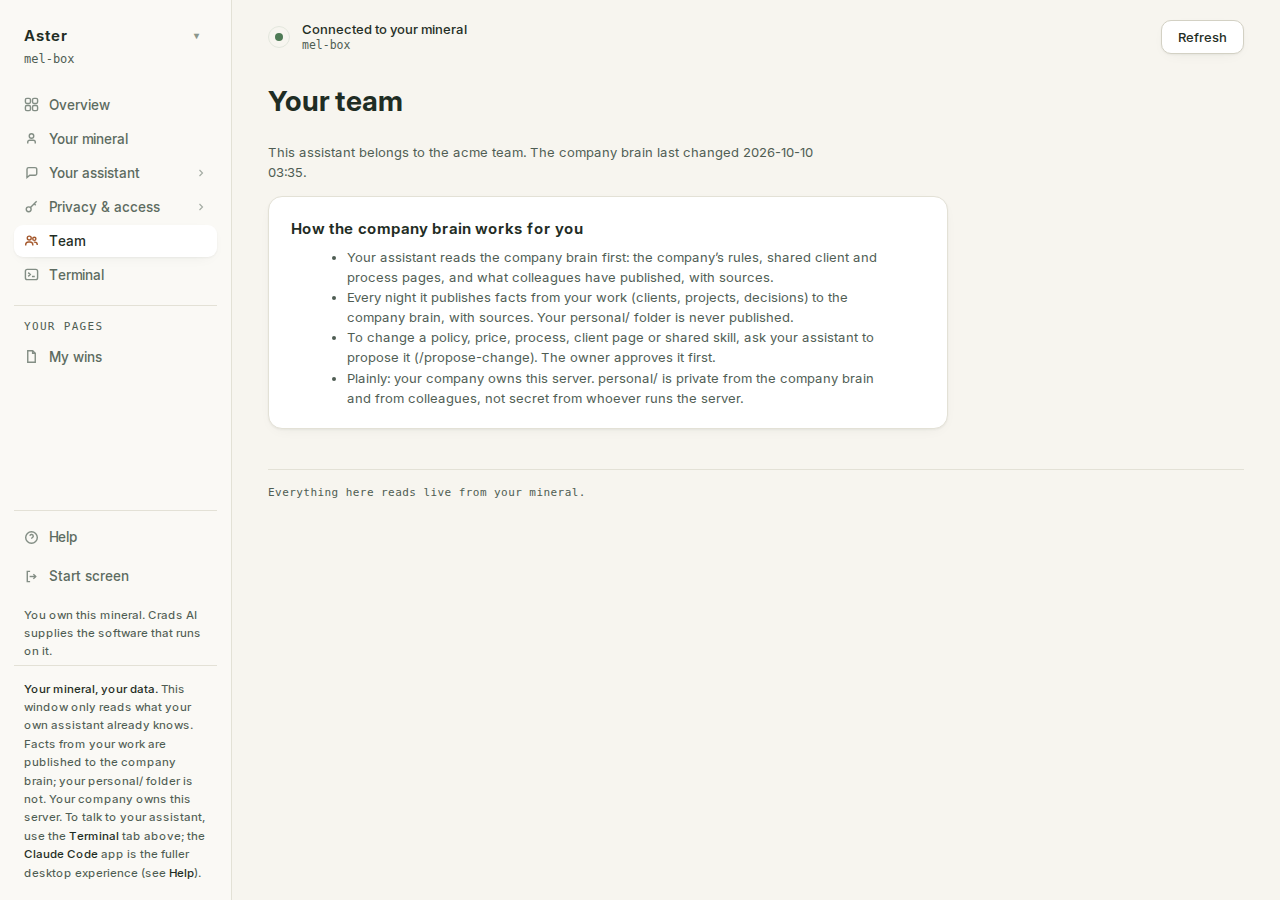
The footer under the sidebar changes on every team mineral too. "Nothing here is visible to anyone else" stops being true, so it says what is: on a person's assistant, that facts are published and the company owns the server; on the company agent, that it holds the company brain and the team reads it.
The week so far#
There is no button for this one. Every hour the company agent rewrites a page in the company brain, digest/week-<year>-W<nn>.md: who published on which days, the decisions logged, the rule changes approved or turned down, what is still waiting for you, the pages more than one person has written about (they may disagree), and who has gone quiet. Read it on GitHub, or ask any assistant on the team, or the company agent in Slack, "what happened this week?".
What is not on this tab#
Three things change the team itself, and they live in the Crads app on the owner's computer, not on any server's Team tab. Choose Set up a team, and the teams this computer set up are listed with:
- Add people. New names, the hosting token, Add them. Each new person gets their own server and repository; nobody else's server is touched.
- Someone's leaving. Their
personal/folder is copied to your computer first, then their keys are cut, their repository archived, and their server deleted. You type their name to confirm. - Support access for the whole team. Opens Crads AI support for 24 hours on the company agent only, or on every server. Every server includes your staff's assistants, so tell them first. Close it on every server ends it early.
Set up a team walks through all three.