Connect Google, with your own key
Five console visits, one file, one sign-in, per account. Your Google key never touches our infrastructure, and here is why we made you do it the hard way.
You will be able to give your assistant your mail, calendar and files with a key that stays yours.
Connecting Google takes about ten minutes and it is the only connection in the product that asks real work of you. This page explains the work, and why we chose to ask for it instead of making it one click.
Why this one is different#
Most services in the catalogue are one click. Google is not, and the reason is your inbox.
Reading Gmail is what Google calls a restricted scope. For a company to offer one-click access to it, that company has to be in the middle of your mail: their app, their name on the consent screen, their annual security audit, and their infrastructure holding a key that can read your email. We could have done that. Several companies do.
Instead you create your own key, in your own Google account, and it stays on your mineral. Your Google key never touches Crads AI infrastructure. We could not read your mail if we decided to, and no audit or promise is doing the work: we are simply not in the path.
The price is the ten minutes below. That is the trade, stated plainly, and it is the right way round.
Step 1: create your key#
The Connections page walks this with a button per step that opens the exact Google page. Five short visits, about five minutes:
| # | What you do |
|---|---|
| 1 | Create a project. Name it anything, press Create. |
| 2 | Turn on the services. One confirm enables Gmail, Calendar, Drive, Docs, Sheets, Tasks and Contacts for your key. |
| 3 | Name the app. Any name, your own email in both contact fields. |
| 4 | Say who can use it. Choose External, then Publish app so the status reads In Production. |
| 5 | Make the key. Create client, choose Desktop app, download the JSON. |
Step 4 is the one that matters and the one people balk at. Google will mention that public apps need verification. That applies to apps other people use, and this app has exactly one user: you. Publishing is what makes your sign-in permanent rather than weekly, so do not stop at Testing.
Step 5 must be Desktop app, not Web. If you pick the wrong one, the app tells you and links you back rather than failing later with something unhelpful.
Step 2: drop the file#
Drag the downloaded client_secret_….json onto the card, along with the email address the key belongs to.
The file goes to your mineral and nowhere else. The page never displays what is inside it, you never type the id or the secret, and neither string is echoed back anywhere.
If you drop the wrong file#
The card checks the file the moment it lands, and every refusal names its own fix. There are four:
- "that is a Web application client: go back to the console and create a Desktop app client." You picked the wrong type at the last console step. A Web client can never finish this sign-in, so the card refuses it now rather than letting it fail later.
- "that file is not the JSON Google gave you: download it again from the console." The file did not parse as JSON at all. Usually a renamed or half-downloaded file.
- "that JSON holds no Google OAuth client (expected an id ending .apps.googleusercontent.com): download the file again from the console." Valid JSON, but not a client file. You dropped something else.
- "that JSON is missing its client secret: download the file again from the console." The file is a client, but incomplete. A fresh download fixes it.
None of these cost you anything. Fix the file, drop it again.
Step 3: sign in, and choose what to share#
You will see a screen saying Google has not verified this app.
That screen is correct and it is proof the thing worked. The app is yours. You made it four minutes ago. Nobody has verified it because nobody was asked to. Click Advanced, then Go to your app's name.
Then Google lists everything your assistant could reach, each with a tick-box: Gmail, Calendar, Drive and the rest. Tick what you want to share and leave out what you do not. If you want your assistant reading your calendar but nowhere near your email, that is a supported answer, not a workaround.
You can sign in again at any time to add or remove services. Nothing is irreversible here.
What you'll see while it connects#
The wizard card is a four-step ladder: Create your key, Drop the file, Sign in with Google, Working. Each step opens as the one before it finishes, and during the sign-in the card narrates what it is doing in a running list: "opening your browser", then a line reminding you the unverified-app warning is yours to click through, then "proving the key against your calendar" (or whichever service you granted), then "delivering the key to your box". The last line, when everything lands, is "your box can use Google now, including in its scheduled jobs".
If a step fails, the narration stays on screen, so you can see exactly how far it got before it stopped.
After it works#
Your mineral runs a live check against what you actually granted, so the connection is reported as working only if it demonstrably works. Then it is available to your scheduled jobs, not just to you in conversation, which is the point: the morning brief can read your calendar because the connection is real machinery rather than a session.
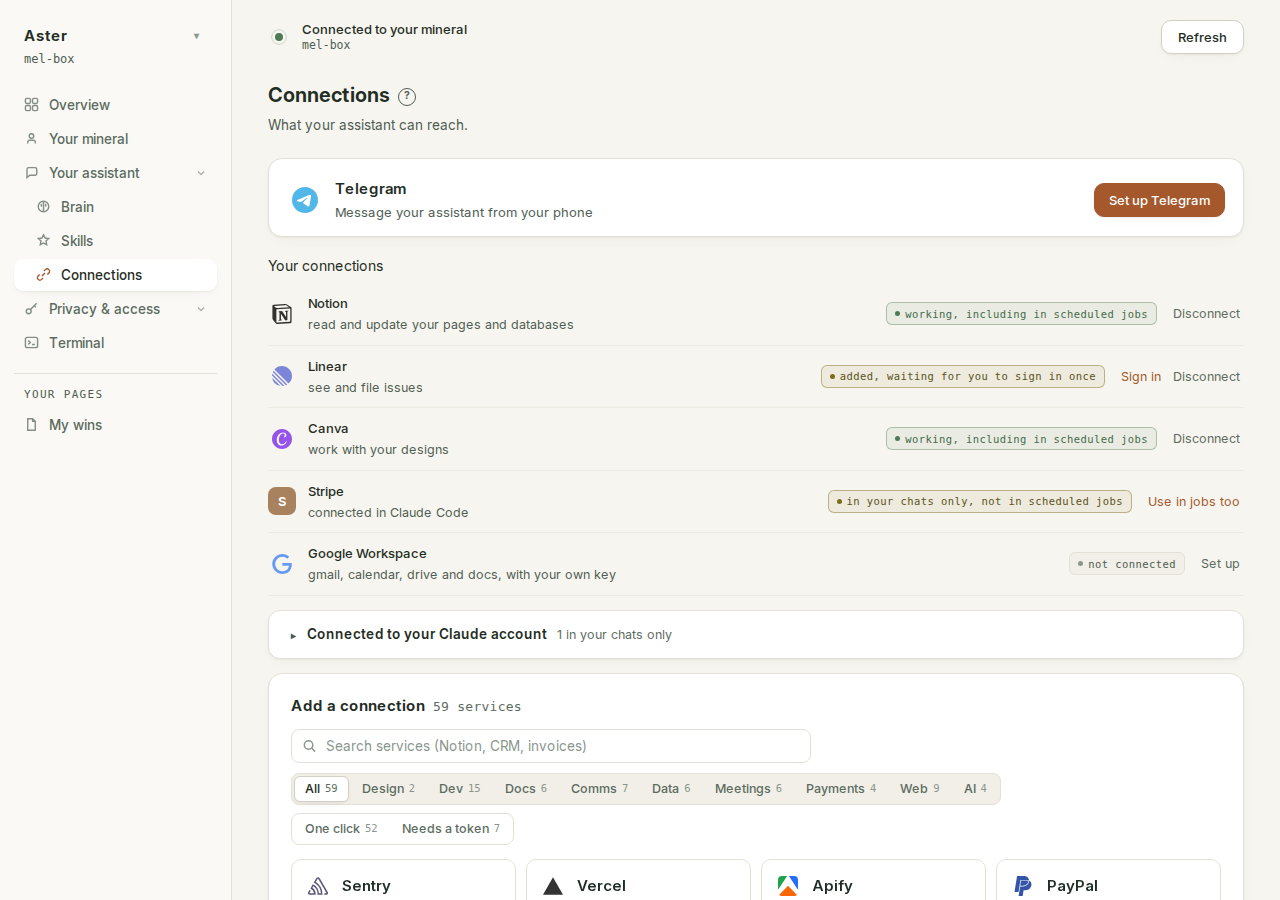
The Google row on the Connections page always says where things stand, in one of three phrases: "working, including in scheduled jobs" once the key is proven, "added, waiting for you to sign in once" when the row exists but you have not signed in yet, and "sign-in expired, needs you once more" in the rare case the key actually dies.
How your mineral watches the key#
From then on your mineral checks the sign-in periodically and tells you once if it ever genuinely dies. It does not nag, it does not retry forever, and a network blip is not treated as death. Concretely:
- Roughly every six hours, your mineral asks Google's own token endpoint whether the key still refreshes, using the credential file's own embedded client.
- Only a definitive answer from Google that the grant is invalid counts as death. A network failure, a timeout, or a Google server error is never death; the mineral just tries again next window.
- If the key does die, you get exactly one Telegram message, then silence. Its fix line is the whole procedure: "Two clicks in your Crads-AI app: Connections, then Google, then Sign in."
- Signing in again retires the dead marker on its own. There is nothing to clear or reset.
If you tick nothing#
The sign-in fails, and it tells you that you ticked nothing, which is the fix. A key that grants access to nothing is not a connection.
If Google refuses to show your calendar or mailbox#
After the sign-in, the wizard proves the key with one live call against a service you actually granted. If Google refuses that call, the failure names the service and its fix, for example: "Google would not show your calendar with this key (HTTP 403): check the Calendar service is turned on for your project". The same shape covers your mailbox, your files, your task lists and your contacts.
This is almost always the skipped-console-step failure: the key is fine, but step 1's "Turn on the services" visit was missed or did not confirm, so the service is switched off for your project. Turn it on in the console and sign in again.
If Google leaves out the refresh token#
Occasionally the sign-in completes but the wizard stops with: "Google did not include a refresh token: sign in again and approve every screen". The sign-in asks Google for offline access and a fresh consent every time, so the only way the refresh token goes missing is that an approval screen got skipped or dismissed along the way. Run the sign-in again and approve each screen it shows you.
If you picked only Docs or Sheets#
Docs and Sheets have no safe test call (there is no document the wizard could read without picking one of yours), so a grant that includes only those ships untested: the card says "the services you picked have no safe test call; skipping the live test", and the first real use is what proves the key. If that first use fails, the fix is the same console check as above.
Adding or removing services later#
Two clicks. The client file never leaves your mineral, so changing what you share later never needs the JSON dropped again: press Sign in, pick your account, tick a different set of boxes. The same is true if you cancel a sign-in partway: the key you dropped survives the cancel, and pressing Sign in again picks up from there.
The one exception is honest about itself: if the app answers "drop your key file first", it has restarted since the file was dropped and its working copy is gone. The card opens the file step for you; download the JSON from the console again and carry on.
More than one Google account#
You can connect as many Google accounts as you like: a personal Gmail and a work account, two Gmails, an account at a client's organisation. Each one is its own row on the Connections page and its own key. The first account you connect is simply Google Workspace; every further one carries the name you give it, Google Workspace (work), Google Workspace (acme), and that name is also how your assistant tells them apart. Ask it to "check my work calendar" and it reaches the work account, not the personal one.
Once one Google row is working, the Connections page offers Add another Google account beneath your connections. Press it and the same card opens with one extra step at the top: a name for the account. One or two words. Then it is the walk you already know, start to finish: five console visits, the file, the sign-in.
Every account needs its own key. This is deliberate, and it is the reason the walk repeats rather than reusing the key you already made. A key made in one Google account can, in principle, sign another account in, but a key made in your personal Gmail is a key your personal account owns, and a Google Workspace administrator at your employer or a client may block it outright (they often do, for apps their organisation has not verified). A key made inside that account, by you, in that account's own console, is one nobody else's policy can quietly turn off, and it stays with the account it belongs to. Ten minutes per account, once, and each key lives and dies on its own.
If the account you are adding is on a Google Workspace domain you administer, step 4 has a shortcut: choose Internal instead of External and you never see the unverified-app screen at all. Everything else is identical.
Each account is watched separately, in the way described above. If one key dies you hear about that one, by name, and the others carry on. Disconnect also works per row: removing the work account leaves the personal one exactly as it was.
One rule the page enforces: an account can be connected once. If you try to add an email that already has a row, the card says which row, and the fix is to use that row (or disconnect it first).
Disconnecting#
Disconnect on a Google row destroys that account's credential on your mineral and says exactly that: "Google Workspace is disconnected and its credential is gone from this box. The permission you granted at Google Workspace is yours to revoke there." The second sentence is the honest half: your mineral cannot reach into your Google account, so the grant you made on Google's side stays until you revoke it in your Google account settings.
If your Google row looks different#
Two known cases:
- Your mineral's software predates this flow. The Connections page checks what your mineral can do, and if it is behind it says so in words: "This page needs a newer version of your mineral than it is running", with the one-click fix (Update and restart on the Claude Code tab). Nothing of yours changes in the update.
- A dead first-generation row. Some early minerals still carry Gmail, Google Calendar or Google Drive rows from before this flow existed. Those endpoints could never complete a sign-in, and the row now says so: "sign-in can never finish on this endpoint, disconnect it". Disconnect is the fix; the single Google row on this page is the replacement.
The claude.ai Gmail connector is not this#
If you connected Gmail inside the Claude app itself, that connector lives on your Claude account, works in your chats, and can never run in your scheduled jobs; your mineral holds nothing of it. The Connections page says so on the row and points here: connect Google to your mineral, with your own key, and the scheduled jobs get it too. The two can coexist; they are different things.
Where the key lives afterwards#
The Secrets page lists each key as its own row, named for its Google account ("Google Workspace (you@gmail.com)"), with a pointer back to that account's row on the Connections page as the place to revoke it. Nothing on any page ever shows the key itself: the only fragment ever displayed is the last six characters of the client id, enough for you to recognise your own key on the card and useless to anyone else.
What we hold, at the end of all this#
Nothing. Your key is on your mineral. Your tokens are on your mineral. Your mail goes from Google to your mineral. Nothing on any side changed except your own machine, which is the whole design.